How to Choose an Astro Template: 9 Checks Before You Buy
How to choose an Astro template without regretting it: nine checks for the live demo, the code, the content model, performance, SEO, the license and support.

On this page
- The quick checklist
- 1. Start from the job, not the gallery
- 2. Open the live demo on your phone
- 3. Check what “pages included” really means
- 4. Look at how content is stored
- 5. Read the code before you read the license
- 6. Measure performance yourself
- 7. Check the SEO foundations
- 8. Read the license for your actual use
- 9. Find out what happens after the sale
- The short version
- Frequently asked questions
A template is a bet that someone else’s decisions will save you time. When the bet pays off, you launch in days instead of weeks. When it doesn’t, you spend those weeks undoing a codebase you never chose.
The difference rarely shows in the screenshots. It shows in the live demo, in the repository and in the small print. Here is how to choose an Astro template in practice: nine checks to run before you pay, in the order we would run them.
The quick checklist
If you only read one section, read this one. A good Astro template:
- Was built for the kind of site you are launching.
- Works on a phone, with the keyboard and with reduced motion.
- Includes complete page types, not padded variations.
- Keeps content in collections and typed data files, not in components.
- Has readable code on a current Astro version with few dependencies.
- Scores well on Lighthouse mobile: LCP under 2.5 s, CLS near zero.
- Ships the SEO basics: titles, canonicals, sitemap, Open Graph, JSON-LD.
- Has a license that covers how you will actually use it.
- Shows a dated changelog, documentation and a support channel.
The rest of this guide explains what to look for in each one.
1. Start from the job, not the gallery
Write down what the site has to do before you browse: the pages it needs on day one, who edits the content, and what has to be true at launch (a blog, a pricing table, a docs section, a contact form that actually sends).
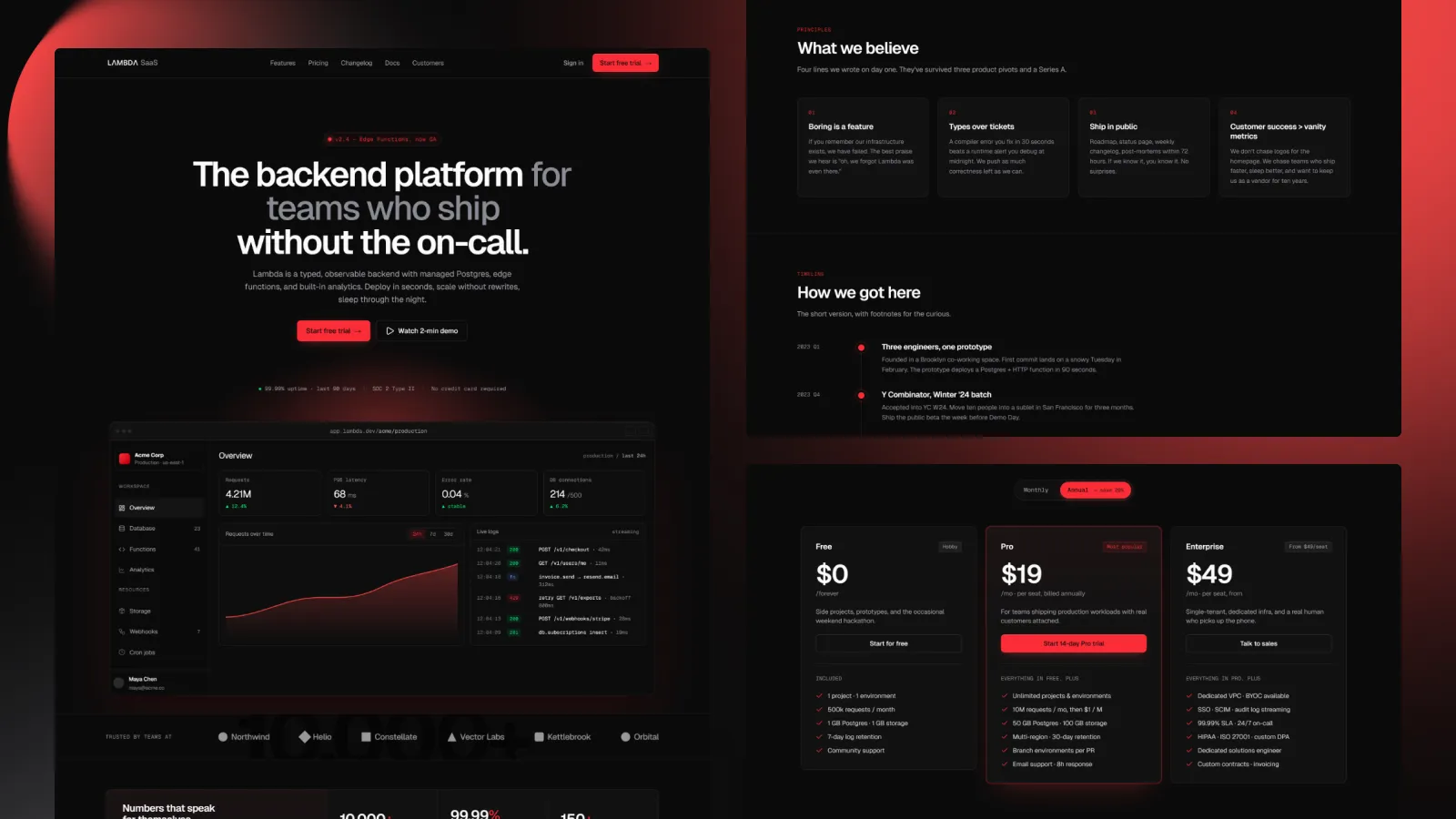
A template built for a SaaS launch and one built for a photography portfolio can look equally good and still be completely wrong for each other’s job. The closer the template’s own purpose is to yours, the less of it you will rewrite. That is why the Lambda catalog is organised by the kind of site each template is for, not by colour or style.
2. Open the live demo on your phone

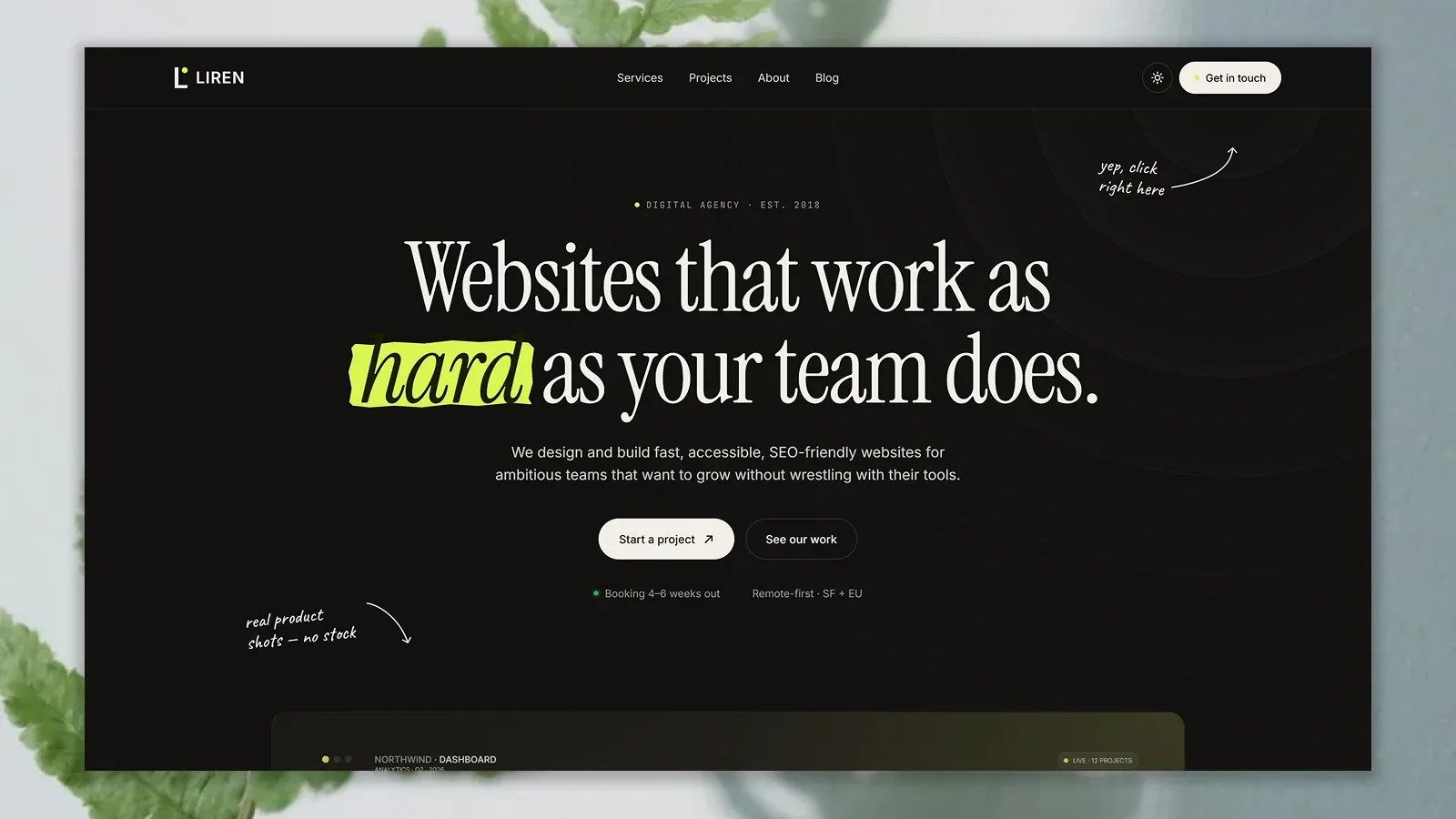
Screenshots are curated; a live demo isn’t. Open it on a phone, then on a laptop, and use it the way a visitor would — you can practise on the Liren agency template demo right now:
- Open and close the mobile menu, then try it with the keyboard.
- Resize the window slowly and watch for overflow, overlapping text and images that jump.
- Click every link in the navigation and the footer. A template that ships dead links ships other shortcuts too.
- Turn on reduced motion in your OS settings and reload. Animations should calm down, not break.
If the demo only looks right at one width, that is the width the author tested.
3. Check what “pages included” really means
Count the pages you would actually use, not the number on the listing. A good template gives you complete page types with real structure: an about page, a pricing page, an article layout, a 404, legal pages.
Watch for padding. Five near-identical landing-page variations count as five pages on a sales page and as one page on your site.
4. Look at how content is stored
This is the check that decides how the next year goes. In a well-built Astro template, content lives in one place and the pages read from it:
- Content collections for anything repeatable (posts, projects, case studies), with a schema that validates frontmatter at build time. The Astro guide to content collections shows what that looks like when it is done properly.
- Typed data files for site-wide values like navigation, contact details and pricing, so a change in one file reaches every page.
If the copy is hard-coded across dozens of components, every edit becomes a search through the codebase — and so does every client handover.
5. Read the code before you read the license

Most sellers show the folder structure, the README or a public repository. Spend ten minutes there. You are looking for:
- A current Astro version and a short dependency list. Every extra package is something you will have to update.
- Components with clear names and clear boundaries, not one 900-line page file.
- Styling that follows one system. With Tailwind 4 that usually means design tokens defined once in
@theme, not arbitrary values scattered across the markup. - TypeScript in strict mode, and an
npm run buildthat passes without warnings.
You don’t need to understand every line. You need to believe you could change any of them.
6. Measure performance yourself
Astro makes fast sites the default, so a slow Astro template is usually a sign of what was added on top: oversized images, render-blocking fonts, heavy client-side scripts.
Run Lighthouse on the demo in a private window, on the mobile profile. Then look past the score at the details that matter for search:
- Largest Contentful Paint under 2.5 seconds, the threshold Google treats as a good LCP score.
- Cumulative Layout Shift close to zero, including when the web fonts load — web.dev explains what causes layout shift and how to spot it.
- Images served in modern formats, with explicit width and height.
7. Check the SEO foundations
A template should get the technical basics right so you only have to write good content:
- A unique
<title>and meta description on every page, set from data rather than hard-coded. - Canonical URLs, Open Graph and social-card tags.
- A generated sitemap and a sensible
robots.txt. - Structured data (JSON-LD) where it applies: Organization, Article on posts, Product on product pages.
- One
<h1>per page and headings in order.
View the source of a demo page and search for application/ld+json and og:image. It takes thirty seconds and tells you a lot.
8. Read the license for your actual use

Licenses vary more than prices. Before you buy, confirm:
- How many sites you can build with it, and whether client projects count.
- Whether you can use it for a site you sell, or only for your own.
- What you are not allowed to do — usually reselling the template itself.
If the license page is vague, ask. A clear answer before purchase is a good sign of the support you will get after it. Ours is one page, in plain English: the Lambda Studio license.
9. Find out what happens after the sale
Astro ships major versions regularly. A template that was current last year can need real work to upgrade this year. Look for:
- A visible changelog with dates. No changelog usually means no updates.
- Documentation that covers setup, customisation and deployment.
- A support channel with a stated response time.
The short version
If you only have five minutes: open the demo on your phone, check where the content lives, run Lighthouse on mobile, and read the license. Those four checks catch most of the templates you would regret.
And if none of the options fit the job you wrote down in step one, that is a useful answer too. Building from scratch is the right call more often than template sellers admit.
Frequently asked questions
What is the difference between an Astro theme and an Astro template?
In practice, nothing. Astro's own directory calls them themes, while most sellers call them templates. Both are a complete Astro project you download, edit and deploy as your own site.
Do I need to know Astro to use a template?
You need to be comfortable editing HTML, CSS and a little JavaScript or TypeScript. A well-built template keeps content in data files and Markdown, so most day-to-day changes never touch Astro-specific code.
Can I use an Astro template for client work?
It depends on the license, not the framework. Check how many sites the license covers and whether client projects are included before you buy; good sellers state both on the license page.
How do I check an Astro template's performance before buying?
Run Lighthouse on its live demo in a private window with the mobile profile. Look for a Largest Contentful Paint under 2.5 seconds and a Cumulative Layout Shift close to zero.